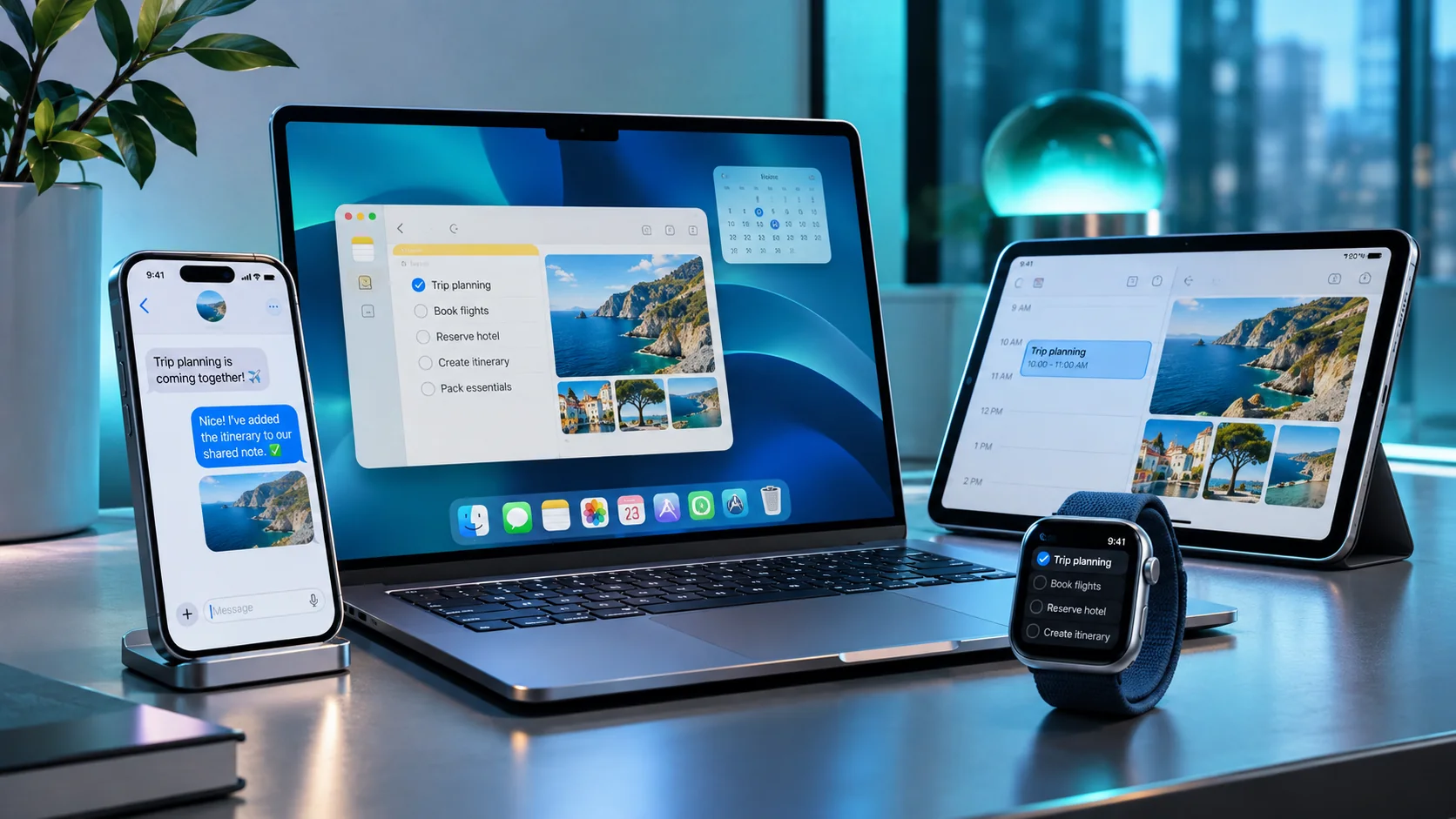
The practical value of the Apple ecosystem becomes clear when your iPhone, Mac, iPad and Apple Watch stop behaving like four isolated devices. A photo taken while travelling can appear on your computer; a Safari page started on the phone can resume on the Mac; and an iPad can become additional desktop space without replacing its own operating system.
These experiences rely on different technologies, including Continuity, Handoff, AirDrop, iCloud and device-specific features. They are not interchangeable. Some work with another person's device, while others require the same Apple Account, two-factor authentication, nearby devices, Bluetooth and Wi-Fi. Here is how to use ten practical features—and how to judge whether each is useful for your routine.
Editorial verification: checked against Apple documentation on 12 November 2026. Settings labels and compatibility may differ between iOS, iPadOS and macOS versions.
Reality check. Availability varies by hardware, operating system and region; this guide is intended for Portugal and explains relevant limits.
Before you start: the essential setup
Start with four checks: (1) your personal devices use the same Apple Account; (2) Bluetooth and Wi-Fi are on; (3) software is up to date; and (4) Handoff is enabled whenever the feature requires it. On iPhone and iPad, look under Settings → General → AirPlay & Continuity → Handoff (or “AirPlay & Handoff”). On Mac, open System Settings → General → AirDrop & Continuity, depending on the macOS release.
Make sure two-factor authentication is enabled for your Apple Account. It is required for certain integrations, including Sidecar, Continuity Camera and Apple Watch unlocking. Each device should still have its own passcode or password: convenience is not a reason to weaken security.
1. Handoff: start on iPhone, finish on Mac
Handoff resumes work from compatible applications such as Safari, Mail, Notes, Maps, Pages and Calendar on a nearby device. Try this: open a web page in Safari on the iPhone, then click the corresponding Handoff app icon in your Mac Dock. The page opens where you left it, without sending yourself a link.
If the icon does not appear, check that Handoff is enabled on both devices, that they use the same Apple Account and that they are near each other. Compatibility also depends on the app: Handoff cannot transfer every possible app session. On iPad, look in the Dock; on iPhone, the app switcher can display the continuation option. Some Apple Watch activities can also be passed to iPhone.
Best use: start an email during a journey and finish it using a full keyboard, or research directions on iPhone and pick up the same route on a larger screen.
2. Universal Clipboard: copy here, paste there
With Universal Clipboard, text, photos and other supported content copied on one device can be pasted on another. Copy an address on your iPhone and press Command-V in a note on your Mac. You can also copy from Mac to iPad, avoiding the detour through messages or email.
The devices must be compatible, nearby, signed in to the same Apple Account, and have Wi-Fi, Bluetooth and Handoff enabled. Copied material is available only briefly and may be replaced when you copy something else. If it fails, try a short text snippet before testing a large image.
Best use: moving a source URL, product code or small research excerpt. Avoid unnecessarily copying passwords or other confidential information between shared devices.
3. AirDrop: send originals without cables
AirDrop sends photos, videos, web pages and documents to nearby Apple devices. In Photos on iPhone, select an image, tap Share → AirDrop and choose the recipient Mac or iPad. The recipient may need to accept the transfer. It can be especially useful when moving original media files without the compression applied by some messaging services.
Wi-Fi and Bluetooth should be enabled on both devices. For privacy, prefer Contacts Only when appropriate and use broader discovery only when necessary. Unlike Handoff, AirDrop can send files to other people with compatible Apple devices and different accounts. Check the intended recipient before sharing sensitive documents.
Best use: moving photos from a trip to a Mac, handing over a document nearby or bringing source footage into an editing workflow.
4. iCloud: consistent files and information across devices
iCloud can keep photos, notes, contacts, calendars and files in sync when the relevant services are enabled. On iPhone, go to Settings → [your name] → iCloud and review which apps should sync. On Mac, open System Settings → [your name] → iCloud. Use iCloud Drive for documents and organise project folders consistently.
Do not confuse synchronisation with an independent backup. Deleting a photo in an iCloud Photos library may remove it from other synced devices as well. Keep separate backups for important material, and check available iCloud storage rather than assuming everything fits the free allowance.
Best use: start a document on iPad, revise it on Mac and access the current version on iPhone, without manually emailing files to yourself.
5. Continuity Camera: use your iPhone as a Mac webcam
Continuity Camera can turn a compatible iPhone into a Mac webcam, using its rear cameras for video meetings. Mount the phone on a stable stand near the Mac, with its cameras unobstructed, and select iPhone as the camera or microphone inside your Mac video app. Apple specifies iPhone XR or later with iOS 16 or later and a Mac supporting macOS Ventura 13 or later for this webcam feature.
The devices must use the same Apple Account with two-factor authentication; wireless use also relies on Wi-Fi and Bluetooth. Features such as Center Stage, Portrait mode, Studio Light and Desk View vary by model. If the camera disconnects, check that the iPhone remains mounted, locked and sufficiently charged.
Best use: remote meetings, interviews and presentations. Good front lighting and clear audio are still essential, regardless of camera technology.
6. Sidecar: use iPad as a second Mac display
Sidecar extends or mirrors the Mac desktop on a compatible iPad. On your Mac, open System Settings → Displays and select the iPad as an additional display. Arrange the screens so the pointer travels naturally between them. A document can occupy one display while source material stays visible on the other.
This is not the same as controlling two independent operating systems. During Sidecar, the iPad displays the Mac desktop. Apple lists minimum Mac and iPad models and system versions, so do not assume every old device qualifies. Wireless use requires the supported proximity and network setup; a cable can be convenient during long sessions.
Best use: editing photos, comparing data or building a presentation. Apple Pencil input is available for supported tasks and configurations.
7. Universal Control: one keyboard for Mac and iPad
Universal Control solves a different problem from Sidecar. The iPad keeps its own screen, apps and operating system, while the Mac's keyboard and pointer can control it. On Mac, open System Settings → Displays → Advanced and enable moving the pointer and keyboard between nearby Macs and iPads. On a compatible iPad, check Settings → General → AirPlay & Continuity → Cursor and Keyboard.
Put the devices side by side and move the pointer past the Mac screen edge towards the iPad. The connection should be offered. Compatible hardware and software, a common Apple Account, two-factor authentication, Handoff and wireless connectivity are required. VPN or network policies may interfere.
Best use: writing on iPad with the Mac keyboard or transferring supported material between apps without swapping input devices.
8. Calls and messages: communicate on Mac or iPad
Calls on Other Devices can let you answer calls received by your iPhone on a nearby Mac or iPad, provided the devices and connection meet Apple's requirements. On the iPhone, look for the phone settings under Settings → Apps → Phone or the relevant Phone menu for your OS, then enable calls on other devices. On Mac, check FaceTime settings for Calls from iPhone. Additional Wi-Fi calling options may depend on the mobile operator.
For messages, Apple supports Messages in iCloud and, where needed, Text Message Forwarding. Apple documents Settings → Apps → Messages → Text Message Forwarding on iPhone when forwarding is not already handled through iCloud. Check that the devices are using the correct Apple Account and consider privacy if a Mac is shared.
Best use: answer calls without leaving a desktop task or type long messages with a physical keyboard.
9. Apple Watch: securely unlock your Mac
A compatible Apple Watch can unlock your Mac when you approach, while the watch is on your wrist and unlocked. On Mac, open System Settings → Touch ID & Password or Login Password, depending on the model, and enable the Apple Watch option. Both devices must use the same Apple Account with two-factor authentication, have Wi-Fi and Bluetooth enabled, and the watch must have a passcode.
This convenience has deliberate security boundaries. After restarting the Mac or logging out, you must enter your password manually for the first login. The watch can also approve some authentication requests with a deliberate action when supported.
Best use: waking a MacBook between meetings without repeatedly typing the password while keeping personal authentication in place.
10. Instant Hotspot: use your iPhone data on Mac
Instant Hotspot makes it easier for eligible Apple devices to discover and join an iPhone's mobile-data connection without repeatedly entering the hotspot password. On Mac, open the Wi-Fi menu and select the iPhone shown as a nearby personal hotspot. On iPhone, check Settings → Personal Hotspot or the relevant Mobile Data menu, depending on your software and operator.
Review your mobile plan: the connection uses iPhone cellular data and can quickly consume an allowance through downloads, video calls and automatic sync. Availability depends on the supported hardware, software, accounts and carrier. Some mobile plans may not provide the expected options.
Best use: finishing a document while travelling or avoiding an unreliable public Wi-Fi network. Turn the hotspot off when you no longer need it.
Which feature should you use?
Different goals require different tools. This quick table helps you pick the right integration:
| Your goal | Feature | Devices |
|---|---|---|
| Resume a task | Handoff | Compatible iPhone, iPad, Mac and Apple Watch |
| Copy and paste | Universal Clipboard | Compatible iPhone, iPad and Mac |
| Send nearby files | AirDrop | Compatible iPhone, iPad and Mac |
| Extend your desktop | Sidecar | Compatible Mac and iPad |
| One keyboard, separate apps | Universal Control | Compatible Mac and iPad |
| Upgrade your webcam | Continuity Camera | Compatible iPhone and Mac |
| Unlock without typing | Auto Unlock | Compatible Apple Watch and Mac |
Remember: being an Apple device is not sufficient. Confirm individual model and operating-system requirements in Apple's official Continuity compatibility list linked below.
Three real-life workflows
Example 1 — work and productivity
Research something in Safari on your iPhone, use Handoff to pick it up on Mac, and paste a reference with Universal Clipboard. Keep the main document on Mac and use Sidecar to display related information on iPad. If you want iPad apps to keep running independently, use Universal Control instead. Knowing the difference prevents wasted setup time.
Example 2 — photos and content creation
Take photos on iPhone, transfer originals to Mac with AirDrop and select the best shots on a larger screen. Use iPad to review a visual reference or add display space. For shooting advice, explore our iPhone photography guide and our professional video guide.
Example 3 — communication and mobility
Answer a call on your Mac at home and connect the Mac to your iPhone's mobile data while travelling. Back at your desk, pick up the latest project file through iCloud Drive. The point is not to connect everything for its own sake: it is to remove repeated steps while controlling data and costs.
Availability in Portugal, privacy and troubleshooting
iPhone Mirroring on Mac: although Apple documents the feature internationally and it may appear in macOS interfaces, Apple currently says iPhone Mirroring is unavailable in the European Union. We therefore do not present it as a working feature for users in Portugal. Handoff and AirDrop provide useful alternatives for specific tasks, but cannot remotely control the whole iPhone.
Security and privacy: using one Apple Account across your own devices is very different from sharing that account with someone else. Do not give out account credentials to enable sync. Review which photos and files go to iCloud, who can discover your device through AirDrop, and which message notifications appear on Mac. See our iPhone privacy guide for more detail.
When something fails: start with model compatibility and OS versions. Check account sign-in, two-factor authentication, Wi-Fi, Bluetooth and distance. Restart devices if necessary. Business networks, VPNs and security software may prevent devices from finding each other.
Documentation checked on 12 November 2026. Feature support can change after software updates.
- Apple: funcionalidades de Continuidade e requisitos
- Apple: configurar e utilizar Handoff
- Apple: Clipboard universal
- Apple: AirDrop entre dispositivos próximos
- Apple: Câmara de Continuidade como webcam
- Apple: utilizar o iPad como segundo ecrã (Sidecar)
- Apple: Controlo universal
- Apple: desbloquear o Mac com Apple Watch
- Apple: chamadas por Wi-Fi noutros dispositivos
- Apple: reencaminhar mensagens do iPhone
- Apple: disponibilidade da Replicação do iPhone
Make the devices you own work better together
The Apple ecosystem works best when each device retains its strengths and switching between them removes unnecessary steps. Start with Handoff, AirDrop and iCloud; then explore Sidecar, Continuity Camera or Apple Watch based on what you own. The aim is not to buy every device, but to get more value from the ones you already use.
Frequently asked questions
Do I need all four devices to use the Apple ecosystem?
No. Two compatible devices are enough for many features, such as AirDrop, Handoff or Continuity Camera. Apple Watch is optional.
What is the difference between Sidecar and Universal Control?
Sidecar uses an iPad as an additional Mac display. Universal Control keeps iPad apps running independently while using the Mac keyboard and pointing device.
Do Handoff and AirDrop require a paid iCloud+ subscription?
No. A paid iCloud+ plan is not required for those features, although free iCloud storage may not fit large photo and file libraries.
Can I control my iPhone from my Mac in Portugal?
Apple says iPhone Mirroring remains unavailable in the European Union as of 12 November 2026. Handoff and AirDrop are alternatives for specific tasks, not complete remote control.
Can I use AirDrop with someone else’s iPhone?
Yes. Compatible nearby Apple devices can share via AirDrop even when they use different Apple Accounts. Verify the recipient and use restrictive discovery settings when possible.