An iPhone can do far more than most owners discover in the Settings app. These ten practical features combine five older tools many people overlook with five iOS 27 improvements. Each includes quick steps, a realistic use case and a compatibility note so you can check what works on your own device.
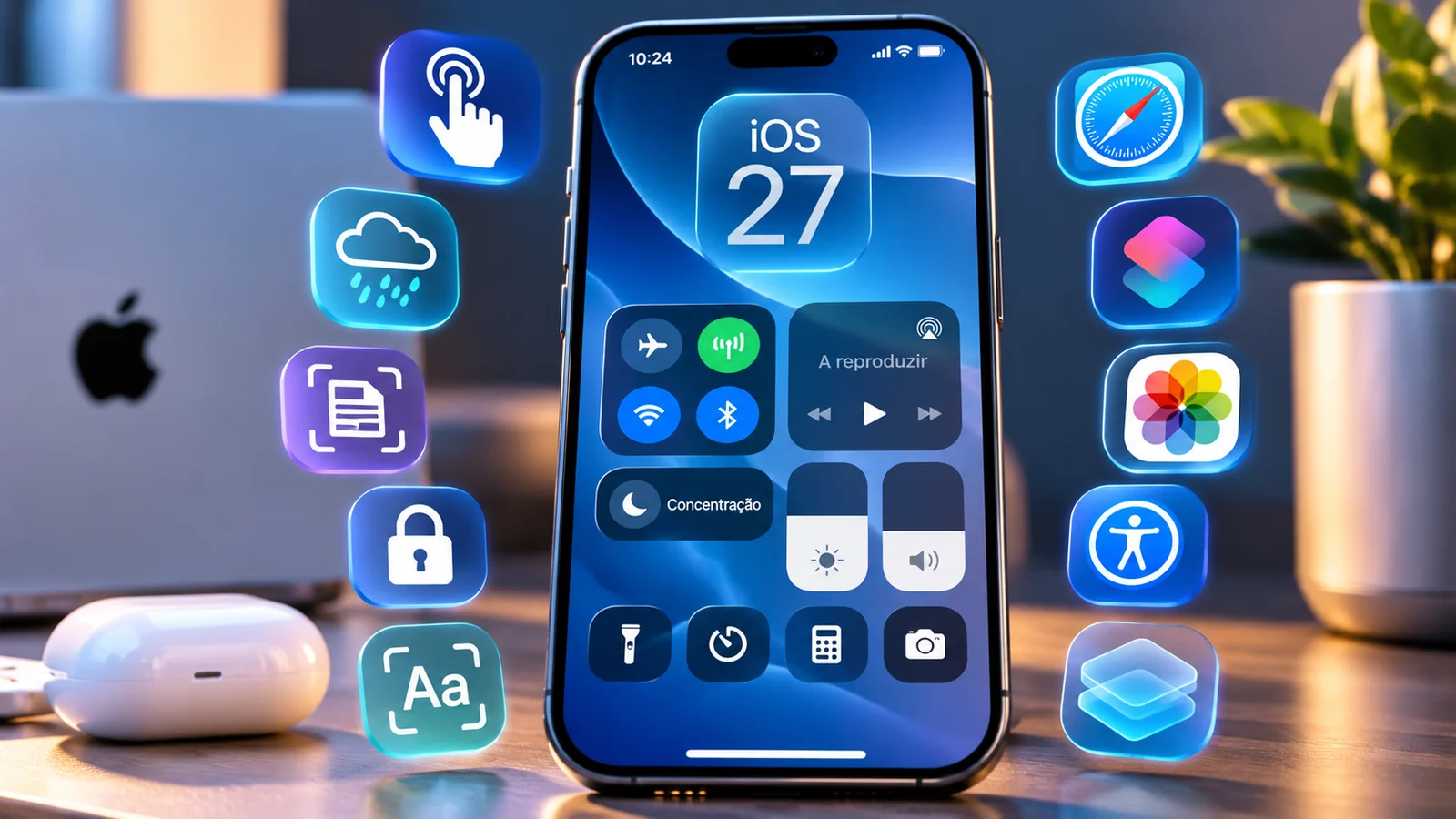
Editorial note. Features 1–5 existed before iOS 27; features 6–10 highlight iOS 27 additions or enhancements. Labels and availability may vary across languages and regions. Siri AI is not initially available on iOS 27 in the EU.
1. Back Tap: the invisible button on your iPhone
Your iPhone has a control surface that does not appear on its screen. Two or three quick taps on the back can open Control Center, take a screenshot, or run a shortcut. This is useful when you have only one hand free or do not want to navigate through menus.
Back Tap is not new in iOS 27. It has been available since iOS 14 on supported iPhone 8 and later models. Its usefulness comes from choosing actions that match your habits: one gesture for a frequent task and another for something occasional.
How to enable or use it
- Open Settings → Accessibility → Touch → Back Tap.
- Choose Double Tap or Triple Tap and assign an action.
- Test it while holding your phone normally and adjust if accidental triggers occur.
Practical example: Try it: use Double Tap for screenshots and reserve Triple Tap for an accessibility shortcut.
Compatibility: Cases and the way you hold the device may affect how consistently taps are detected.
2. Background Sounds: rain or ocean without another app
Your iPhone can play built-in ambient audio, including rain, ocean and other sounds, while you read, work or travel. You do not need a subscription or a separate streaming playlist. Background Sounds is primarily an accessibility tool, but some people find it useful for creating a more focused environment.
You can adjust the volume, pick another sound and decide what should happen when media starts or when the device locks. It is not a medical treatment and will not have the same effect for every person.
How to enable or use it
- Open Control Center and find Background Sounds; add the control if it is missing.
- Touch and hold the control, choose a sound and turn it on.
- Adjust the volume and review whether audio should stop when the iPhone locks.
Practical example: Try it: play soft rain for a focused reading session without adding more notifications.
Compatibility: Background Sounds has existed since iOS 15; equalizer and timer options depend on newer system versions.
3. Notes: scan and sign a document
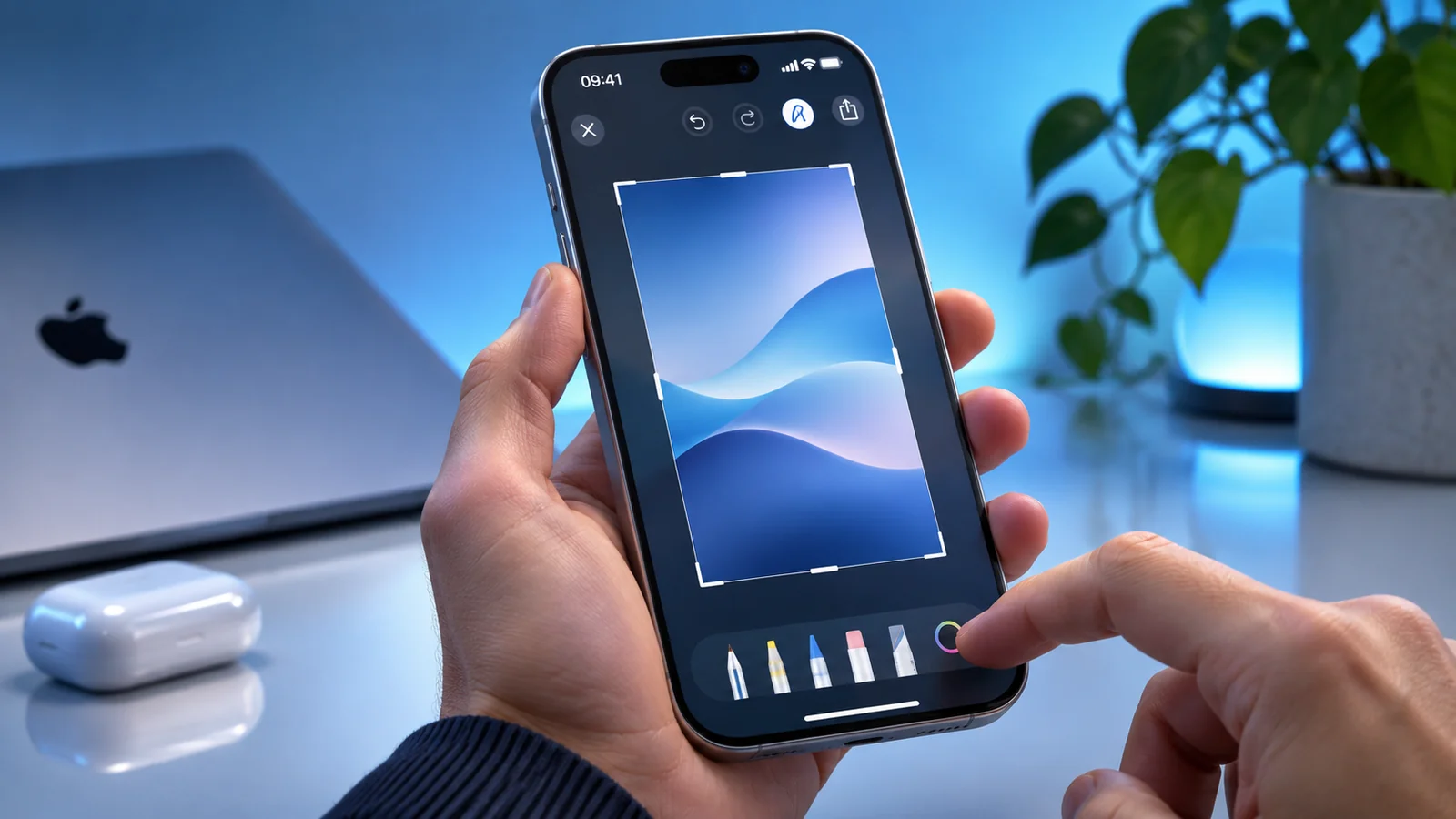
The Notes app can turn your iPhone into a practical document tool for bills, forms and letters. Automatic scanning detects the page, lets you correct the corners and combines multiple sheets. You can then add a handwritten signature using Markup.
This is easier to manage than taking a handful of separate photos. Keeping the scan in a note also gives you space to add dates and explanations. Always check whether the receiving organisation accepts an image-based signature for the particular procedure.
How to enable or use it
- Open Notes, create a note and choose Attachments → Scan Documents.
- Frame the page and let automatic capture run, or use the shutter and adjust the corners.
- Open the scan, select Markup → Add → Signature and position it.
Practical example: Try it: scan a repair receipt and keep the date and warranty details in the same note.
Compatibility: A signature drawn on an image is not necessarily equivalent to a legally qualified digital signature.
4. Lock or hide apps behind Face ID
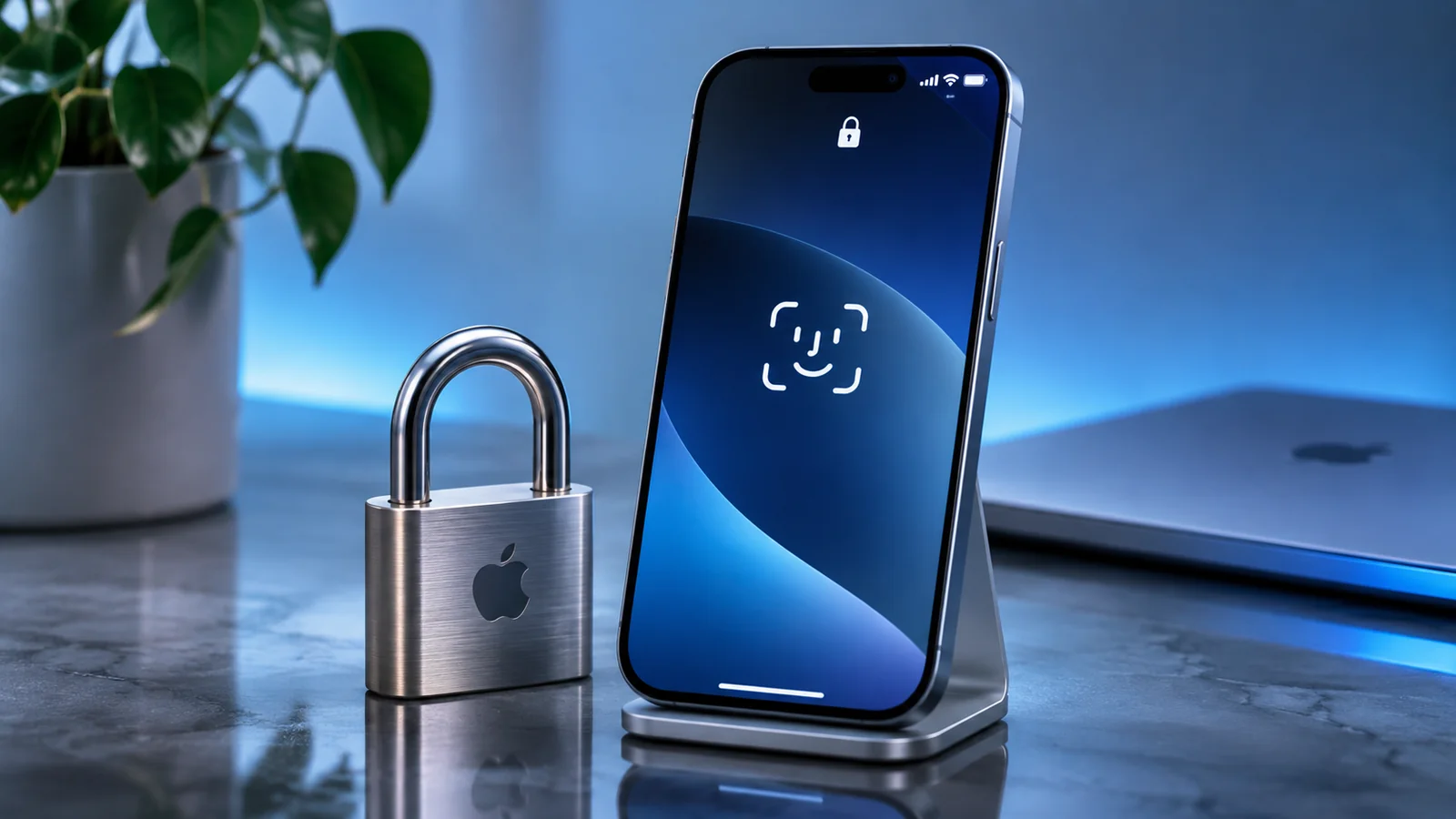
Face ID is not just for unlocking the phone. You can also require authentication before opening individual apps, even while the phone is already unlocked. This adds a useful boundary when lending someone your device for a moment.
Some downloaded apps can also be hidden from the Home Screen and placed inside a protected folder in App Library. Hidden does not mean completely untraceable: purchase or usage information may remain visible in parts of the system.
How to enable or use it
- Touch and hold the app icon on the Home Screen.
- Choose Require Face ID, Touch ID or Passcode.
- Where supported, choose Hide and Require Face ID; retrieve the app from the Hidden folder in App Library.
Practical example: Try it: protect a personal note-taking app before lending your iPhone to show a photo.
Compatibility: Built-in apps and default applications may have restrictions; availability depends on the iOS version.
5. Live Text: copy information without retyping
Text in a photo or the Camera viewfinder can become selectable. This makes it easy to copy a product reference, street address, phone number or short paragraph to Notes, Messages or Mail without manually entering every character.
A quick copy saves time, especially with printed forms and labels. Recognition is not infallible: blurred letters, reflections and unusual fonts can introduce mistakes. Always check reference numbers and other important details before using them.
How to enable or use it
- Open Camera and point at clearly lit printed text.
- Tap the Live Text control if it appears, then select the content you need.
- Choose Copy, Translate or another available action and paste the result into your destination app.
Practical example: Try it: copy a product code from a label and search for it in Safari.
Compatibility: Requires supported hardware and languages; never assume a long account number has been captured perfectly.
6. Smarter Safari: organise tabs and follow page changes
iOS 27 adds more useful ways to manage an extended web research session. Automatic topic-based tab organisation can bring related pages together, while Notify Me can watch a page for relevant changes, such as a price drop or stock returning.
This could reduce repetitive checks when shopping. However, site monitoring is limited by what Safari can access. Personalised prices, signed-in pages or rapidly changing offers may not trigger alerts in the way you expect.
How to enable or use it
- Open Safari and visit a page you want to monitor.
- Find page options and Notify Me where available; specify the change you care about.
- Try topic-based tab organisation and review whether its groupings make sense for your research.
Practical example: Try it: follow the restock of an accessory without manually opening the retailer each day.
Compatibility: Apple Intelligence features vary by device, language and region, and may not appear on every iPhone.
7. Shortcuts: describe what you want to automate
A useful iOS 27 enhancement is the ability to create a shortcut from a natural-language description on compatible devices. Instead of hunting through dozens of actions, you can describe the result you want and then review the proposed workflow.
Specific instructions work best. A vague request such as “organise my day” is hard to validate; a concrete trigger and sequence make the result easier to test. Review any automatic messaging or sharing steps carefully before allowing an automation to run without asking.
How to enable or use it
- Open Shortcuts on a compatible iPhone.
- Find the option to describe a shortcut in natural language and enter a specific request.
- Review each suggested action, test it manually, then consider adding an automation.
Practical example: Try it: “When I activate Work Focus, open my task list and start a 25-minute timer.”
Compatibility: Natural-language generation requires supported Apple Intelligence features and may have usage limits.
8. Photos: remove distractions and expand your composition
The iOS 27 Photos experience introduces more advanced AI-assisted editing. Apple highlights Improved Clean Up, Expand and Spatial Reframing as tools for adjusting a photo after capture. They make some edits possible without moving to a full desktop editor.
Such tools require judgement. Removing an object changes the underlying scene; extending a frame may create image regions that were not recorded by the camera. Keep the original when preserving documentary accuracy matters, particularly for journalism or evidence of damage.
How to enable or use it
- Open Photos and select an image, then tap Edit.
- Look for Clean Up, Expand or Reframing where your device supports them.
- Save the result and compare it with the original before sharing.
Practical example: Try it: refine the composition of a travel photo while keeping an untouched copy.
Compatibility: Requires compatible Apple Intelligence hardware and services; daily limits or regional restrictions may apply.
9. Accessibility Reader: make long pages easier to read
Many iPhone owners adjust brightness but overlook dedicated reading tools. Accessibility Reader presents text in a cleaner view with custom type size, colour, spacing and optional spoken playback. It can make long articles easier to follow across supported apps.
iOS 27 adds some intelligent text structuring, summaries and translation where Apple Intelligence is available. Those features are useful aids, not substitutes for checking the entire original when the details of a contract or technical instruction matter.
How to enable or use it
- Open Settings → Accessibility → Read & Speak and enable Accessibility Reader.
- Choose fonts, colours and spacing that improve comfort.
- Open an article and activate Reader using an accessibility control or the Share sheet if offered.
Practical example: Try it: listen to a longer article while following the same text on screen.
Compatibility: Basic reading does not require advanced AI features; summaries and intelligent translation depend on compatibility.
10. Liquid Glass: adjust transparency to improve legibility
The appearance of an iPhone has practical consequences. Contrast and transparency affect how quickly buttons and text can be recognised. iOS 27 includes a Liquid Glass slider, allowing you to choose between a more transparent look and stronger tinting.
This may be useful outdoors or whenever a busy wallpaper makes controls harder to distinguish. The best setting is not necessarily the most colourful: it is the one that makes everyday information easier to find and read.
How to enable or use it
- Open Settings → Display & Brightness → Liquid Glass.
- Move the slider towards stronger tinting or towards more transparency.
- Compare the Home Screen, Safari and notifications to find a comfortable balance.
Practical example: Try it: increase the tint so buttons stand out more clearly near a bright window.
Compatibility: Reduce Transparency or Increase Contrast accessibility options may have to be switched off before using this control.
Frequently asked questions
Are all ten features new in iOS 27?
No. Five are longstanding, underused tools; five cover iOS 27 enhancements. The aim is practical usefulness rather than presenting every feature as new.
Do they work on every iPhone?
No. Back Tap requires iPhone 8 or later, while Apple Intelligence tools need compatible models. Language and region can affect availability.
Are the AI features available throughout Europe?
Some Apple Intelligence features are supported, but availability is not identical across devices, languages and regions. Siri AI is not initially available on iOS 27 in the EU.
What is the easiest feature to try first?
Start with Back Tap, document scanning in Notes or per-app protection. These provide everyday value without complex AI setup.
Checked against Apple’s publicly available guides as of 12 November 2026. Menu names can differ by language or software update.
- Apple — Back Tap
- Apple — Background Sounds
- Apple — Scan and sign documents
- Apple — Lock or hide apps
- Apple — Live Text and text recognition
- Apple — Official iOS 27 features
- Apple — What’s new in Shortcuts for iOS 27
- Apple — Apple Intelligence availability
- Apple — Reading and speaking on iPhone
- Apple — Liquid Glass and display settings
- Apple — iOS 27 updates and compatibility notes
Start small, then make the iPhone yours
The most valuable hidden feature is the one that solves a recurring task. Start with Back Tap, document scanning or app locking, then explore the iOS 27 features your model actually supports. A few deliberate changes can matter more than installing another dozen apps.