Screenshots are one of the most useful iPhone features: they let you keep information, explain a problem, share instructions, or archive important details. The downside is that their convenience can make privacy and organisation easy to forget.
Editorial note. This guide combines practical advice, official documentation and everyday usage. It does not replace official support.
How to take a screenshot
On iPhones without a Home button, briefly press and release the side button and the volume up button together. On models with a Home button, use the Home button and the side button (or top button on older models). The screenshot is then available for immediate editing.
If you only want to save something for yourself, that may be enough. If you plan to send it to someone else, it is worth taking a few seconds to check exactly what will be visible.
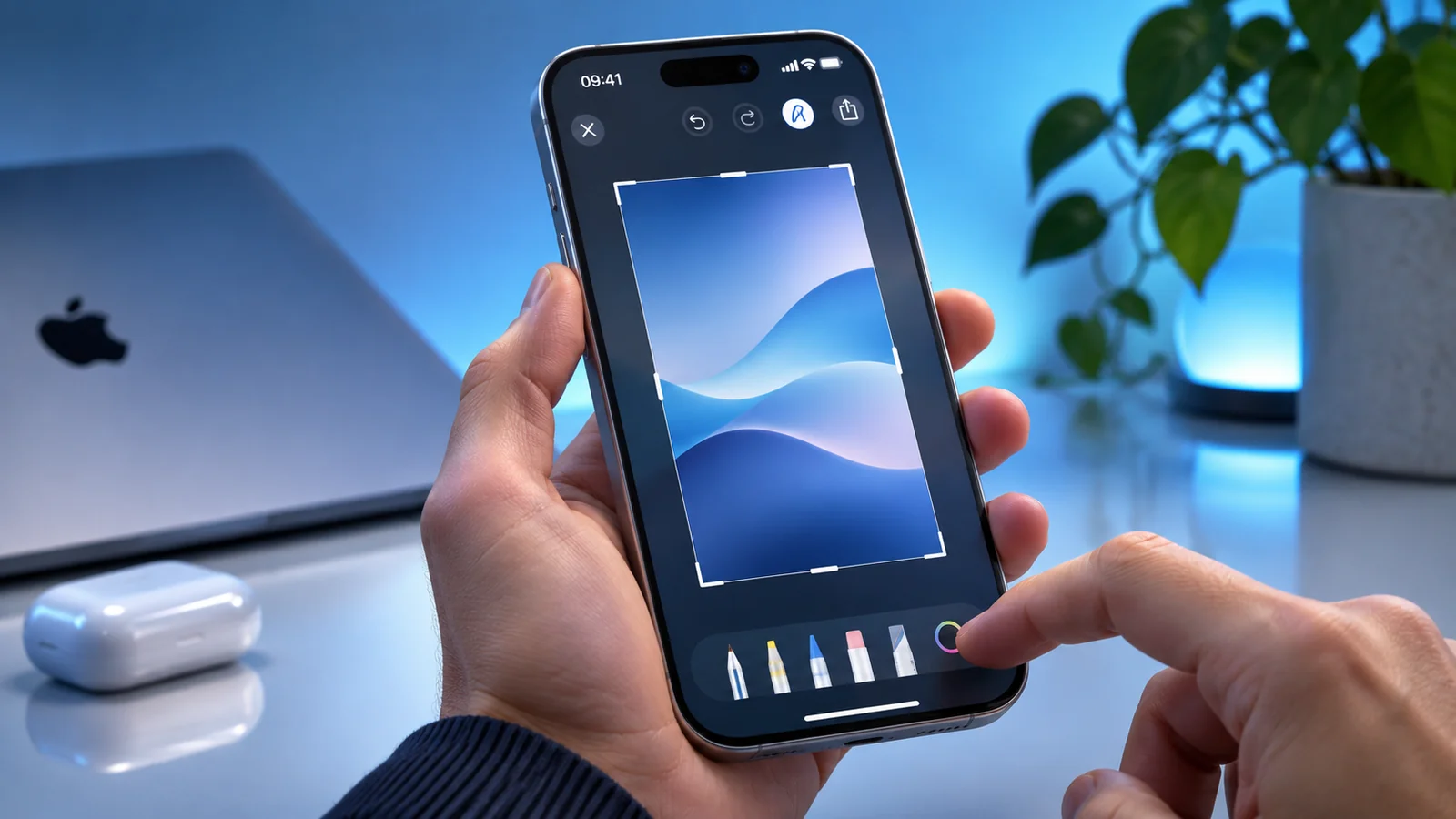
Edit it right away
When you tap the screenshot thumbnail, you can crop, annotate, highlight or hide information. This is especially useful when the image contains personal details, names, temporary codes, or irrelevant parts of the screen.
A well-cropped screenshot is clearer and less noisy. It also helps you avoid sharing more than necessary.
Privacy before sharing
One of the most common mistakes is sharing screenshots that include addresses, phone numbers, emails, temporary codes, banking data, or visible notifications. Before sending, always review the full image.
If needed, use markup, redaction or cropping. Fast sharing may be convenient, but a five-second review can prevent much bigger problems.
Save, copy or share?
Not every screenshot needs to live in your photo library forever. Some are only useful for a quick message. Others are worth keeping as a personal record or to support a help request.
It helps to distinguish between those uses. Saving everything creates clutter; deleting everything leaves you without history when you need it.
Keeping your photo library organised
Screenshots pile up quickly. If you use the iPhone for work, shopping, authentication or support, the number can grow without you noticing. A periodic review helps remove temporary images that no longer matter.
You can also create albums or use search to find screenshots linked to a certain topic, app or date.
When a screenshot is not the best solution
Sometimes a screen recording, copied text or a saved PDF is more useful than a static image. Screenshots are excellent for fast records, but they are not the best answer for every type of information.
Knowing when to use a screenshot and when to choose another format is part of using the iPhone more effectively.
In Safari, the Full Page option may let you capture content beyond the visible screen. When information needs to remain reusable or accessible, saving a PDF or copying text may be better.
This reference documents procedures and settings related to the topic. Check for updates before proceeding.
View the official sourceWhat matters most
A good screenshot is not only quick: it is readable, useful and safe. Once you build the habit of cropping, reviewing and organising, this simple feature becomes a genuinely effective tool.