Losing an iPhone can mean losing access to your photos, email, authentication apps and personal services at the same time. What you should do depends on whether you misplaced it or believe it was stolen. This guide prioritises immediate protective steps, explains what you can do remotely and includes Portugal-specific reporting advice.
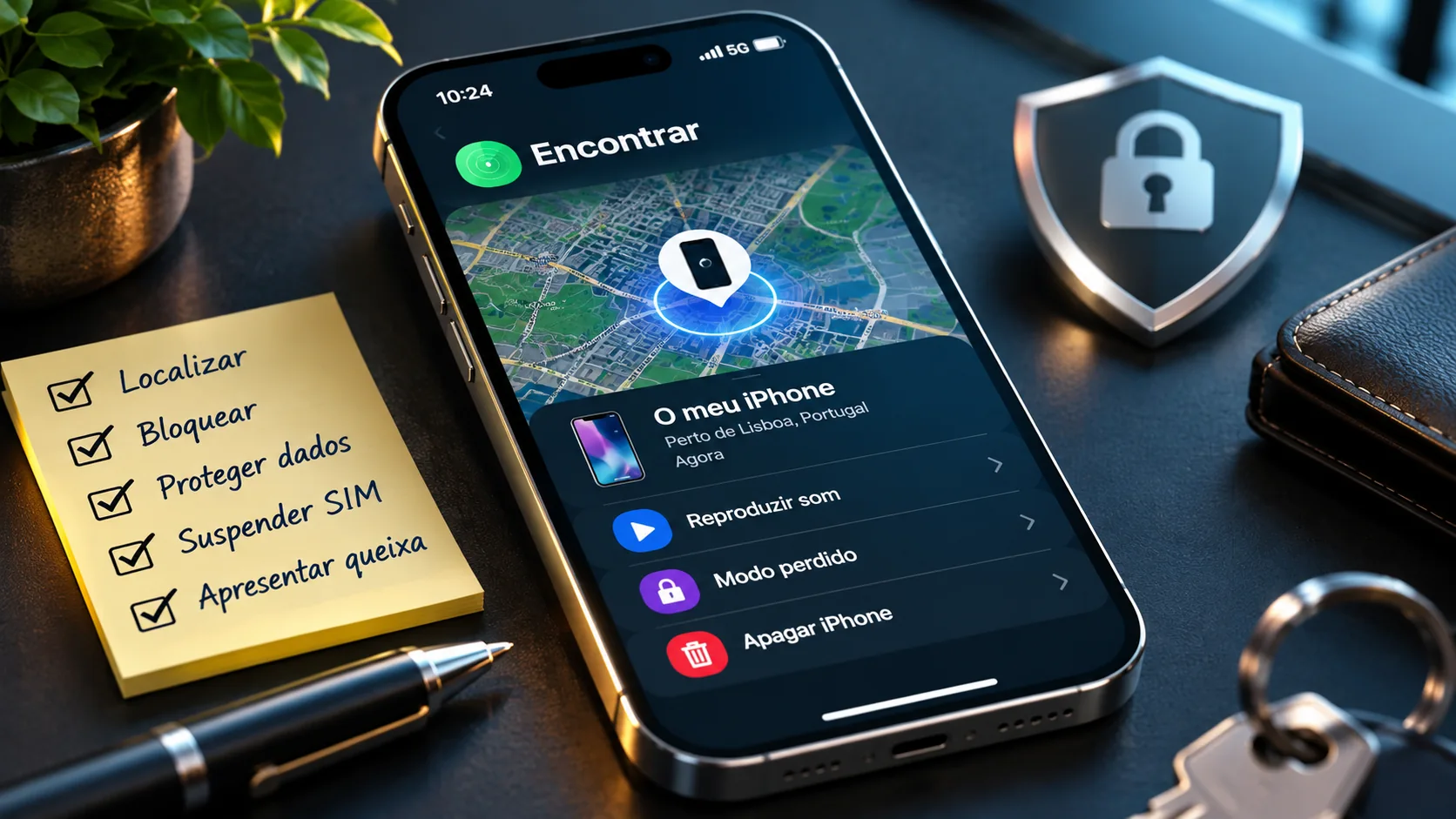
Important note. If theft is suspected, enable Lost Mode, do not confront suspects and never remove the phone from Find My. For an immediate emergency in Portugal, call 112.
Emergency checklist: act in this order
If your phone has just gone missing, start with these steps. Adjust the order to the situation, but do not delay Lost Mode when theft is suspected.
- Open icloud.com/find from another device.
- Mark the iPhone as lost and check the location without taking personal risks.
- Contact your carrier to secure the SIM and phone number.
- Review accounts and payments, especially if somebody may know the screen passcode.
- Report suspected theft and do not engage with suspicious recovery messages.
1. Start here: use Find My in the first few minutes
Your first priority is not to erase the iPhone. It is to prevent unauthorised access while keeping your recovery options open. From a trusted computer, iPad or another phone, type icloud.com/find into your browser and sign in with the Apple Account linked to the missing phone.
Apple allows you to reach Find Devices directly without a verification code, which matters when your only trusted phone is missing. If the main iCloud sign-in screen asks for a code, look for the Find Devices option instead. Open All Devices and select your iPhone. If you have another Apple device already signed in, use Find My → Devices. A family member may also be able to help through Family Sharing.
Do not assume that the map shows a live, precise position. Sometimes it shows the last known location and actions remain pending while the phone is offline. If anyone is in immediate danger, get somewhere safe and call emergency services. In Portugal the emergency number is 112.
2. Check the location without putting yourself at risk
Look at the location displayed and decide whether it is familiar: home, your workplace, a café or a vehicle. If it appears to be an accidental loss and the location is safe, use Play Sound to help find the phone nearby. But if you think it was stolen, do not postpone securing the device while searching.
If the map points to an unfamiliar address or a place linked to possible theft, do not confront anyone or try to retrieve it yourself. Save an appropriate screenshot showing the time and location and share the information with the police. The position may be approximate and is not proof that a person at that address committed a crime.
Supported iPhones may sometimes be detected by the Find My network even without a direct internet connection. That does not guarantee continuous tracking: battery level, coverage, device settings and other conditions affect what you can see.
3. Mark the iPhone as lost immediately
At icloud.com/find, choose the missing phone and select Mark As Lost. In the Find My app, select Devices → [your iPhone] → Lost Mode, then follow the on-screen instructions. This locks the phone using its passcode and suspends eligible cards and passes used with Apple Pay. When the phone is offline, the action may appear as Pending until it reconnects.
If you have simply misplaced your iPhone, you can display an alternative contact number and a brief return message on the lock screen. If theft is suspected, Apple's current guidance is not to share your contact details: criminals can use them for phishing and other scams.
Stolen Device Protection can require biometric authentication before Lost Mode is turned off, but it does not replace this step. Marking the device as lost quickly remains important. Never share the passcode or your Apple Account password with anyone claiming they can return your phone.
4. Contact your carrier and protect your SIM or eSIM
Once Lost Mode is active, reach your mobile carrier through an official channel. Ask about suspending the physical SIM or eSIM, preventing misuse and restoring your mobile number on another device. Be prepared to verify account ownership.
Your phone number may receive one-time codes or act as an account recovery method. A removable SIM card creates different risks from an eSIM, but in either case the carrier can explain the safeguards and restoration process available on your plan.
Ask whether IMEI blocking is available and whether you have insurance or other device protection associated with your service. Do not assume that all carriers use identical rules. Before moving your number, make sure you understand how you will regain access to your Apple Account and accounts protected by two-factor authentication.
5. Review your Apple Account and other important logins
Lost Mode provides essential protection, but the next actions depend on whether someone may know your screen passcode. On another trusted Apple device, open Settings → [your name] → Sign-In & Security. You can also review account information at account.apple.com. Check your trusted numbers, recovery options and unfamiliar changes.
Change your Apple Account password if you see signs of compromise, such as security alerts about changes you did not make. Secure your primary email, social accounts, work services and password manager as appropriate. Use a trusted device and unique passwords; do not follow sign-in links received in unsolicited messages about the missing iPhone.
There is an important difference between reviewing devices associated with an account and removing a stolen iPhone from Find My. Removing it from Find My may disable Activation Lock. Keep that protection in place, and consult Apple's instructions before changing how the device is associated with your account.
6. Check banks, payments and other sensitive apps
Lost Mode suspends eligible Apple Pay cards, but you should still consider any banking or payment apps that may have been signed in. Contact your bank promptly if someone could know the screen passcode, you spot an unrecognised transaction or you suspect an account has been accessed.
Ask what options are available to revoke sessions, increase authentication checks and monitor transactions. Some services allow you to unlink a mobile device or register a replacement. Use contact information from official banking websites or statements, not from unexpected messages.
Review other sensitive services, including email, messaging, company accounts and any apps used as a second authentication factor. An iPhone locked with a strong passcode presents a different risk from one stolen after the attacker watched its owner enter the code; prioritise according to your actual circumstances.
7. Report the theft and keep useful evidence
In Portugal, victims can report a suspected theft to the PSP, GNR, Polícia Judiciária or the Public Prosecution Service. For certain crimes, including theft and robbery, the official Queixa Eletrónica portal accepts online reports. It is not an emergency channel: for violence, immediate danger or a situation needing urgent police intervention, call 112.
Gather the phone's model, serial number and IMEI, the likely time and place of the event, purchase documentation and relevant location screenshots. The serial and IMEI details may be available on the original packaging, purchase records or Apple Account information depending on the device.
State facts accurately and save your report reference. It may be useful for your carrier, insurer and any later investigation. Avoid publishing a device location or accusing individuals online based solely on the Find My map; provide relevant evidence directly to the authorities.
8. Watch out for fake “we found your iPhone” messages
After a theft, you may receive texts, emails or calls pretending to come from Apple, the police, a delivery company or someone who supposedly found the phone. Some lead to convincing fake login pages; others ask for a verification code, your Apple Account password or removal of the iPhone from Find My.
Apple warns that it does not contact you unexpectedly to announce that it has found your iPhone. Do not open suspicious links, approve authentication prompts you did not request or hand over security codes. If you need to verify a claim, type the official website address yourself.
If you have entered credentials on a suspicious site, change the Apple Account password promptly from a secure device and review trusted numbers and account activity. Contact your bank too if financial information was disclosed. Retain fraudulent messages as possible evidence, but do not engage with their sender.
9. Erase the phone remotely only when appropriate
If you conclude that recovery is unlikely or you face substantial risk to sensitive information, consider Erase This Device in Find My or icloud.com/find. First make sure you have made reasonable attempts to find the phone: remote erasure cannot be undone and removes locally stored data once the command completes.
When the iPhone is offline, the erase request takes effect when it reconnects. On recent versions of iOS, the device may remain locatable through Find My after erasure under supported conditions. What you can restore later depends on the backups available through iCloud or a computer.
Do not remove the erased iPhone from Find My. Doing so can remove Activation Lock and make it easier for somebody else to activate or resell the device. If an insurance or AppleCare+ Theft and Loss claim applies, also follow the provider's instructions about keeping the phone on your account.
10. Prepare your next iPhone before another emergency
When you have an iPhone again, enable Settings → [your name] → Find My → Find My iPhone. Where available, enable the Find My network and Send Last Location. Use a strong passcode, Face ID or Touch ID, two-factor authentication and regular backups.
On compatible devices running iOS 17.3 or later, Stolen Device Protection requires extra biometric checks and, for certain security changes, an additional waiting period outside familiar locations. Look for it under Settings → Face ID & Passcode → Stolen Device Protection; exact menus may vary by device and iOS version.
Keep the IMEI and serial number somewhere secure away from the phone, and maintain a backup way to receive account recovery codes. Test that you can sign into your Apple Account and check your backups. Having these safeguards ready beforehand makes a future loss easier to handle.
Misplaced or stolen: different situations need different actions
Misplaced at a familiar location: Play Sound, contacting the venue and showing an alternative number may help you recover it. Suspected theft or unfamiliar location: Lost Mode, personal safety, your carrier and the police take priority. Phone offline: your commands may simply be pending until the device reconnects. Find My previously disabled: you cannot remotely lock or erase it through Find My, so focus on securing accounts and reporting the incident.
In every case, keep track of decisions, reference numbers and contacts. Do not publish your IMEI, Apple Account details or a private address.
Documentation checked on 12 November 2026. Menus and requirements can change across iOS versions and devices.
- Apple Support (Portugal): if your iPhone is stolen
- Apple Support: find a lost iPhone
- Apple: using Lost Mode on iOS 27
- Apple: Stolen Device Protection
- Apple: Activation Lock
- Apple: recognise phishing and social engineering
- Apple: find the IMEI and serial number
- Portugal: official online crime report portal
- Portugal: file a criminal complaint
The most important point
Start with Find My and Lost Mode, then secure your phone number and accounts, and involve the authorities when a crime is suspected. Remote erasure may be appropriate when recovery looks unlikely, but never remove the stolen device from Find My simply because it is missing. See our iPhone privacy checklist and our guide to moving data to a replacement iPhone.
Frequently asked questions
Can I enable Lost Mode without a two-factor authentication code?
Yes. You can go directly to icloud.com/find and select Find Devices without entering a verification code sent to your missing phone.
What if Find My was switched off before the loss?
You will not be able to locate, mark as lost or remotely erase the phone through Find My. Secure your Apple Account, contact your carrier and file a report if theft is suspected.
Should I show my phone number on the lost iPhone screen?
For an accidental loss, an alternative contact number may help someone return it. If theft is suspected, Apple advises against sharing contact details because scammers may misuse them.
Does remote erasure turn off Activation Lock?
Not necessarily. Activation Lock can remain active after the phone is erased. The action to avoid is removing the device from Find My, which can remove that protection.
Should I visit the address shown on the map to recover my iPhone?
Not if theft is suspected or the address is unfamiliar. Share the location with the police instead: the map alone does not establish who has the device.