Battery life is not improved by a single miracle switch. To get more hours from your iPhone, first understand where its power goes, then adjust the settings that matter for your use. The ten steps below focus on daily runtime, explain trade-offs and separate battery ageing from charging habits.
Editorial note. Settings are based on Apple guidance checked on 12 November 2026. Paths, features and availability differ by iPhone model, software version and region. Estimated savings vary by usage; none is guaranteed.
1. Check Adaptive Power on supported models
Adaptive Power learns recent usage patterns on the device and makes small adjustments when it predicts you may need extra battery life. It can temporarily lower brightness and limit background activity. The goal is not to permanently slow the iPhone, but to act when the extra energy is useful.
The setting is available only on certain models and recent iOS versions. It may already be enabled by default. Before changing everything else, check whether the device is already managing higher-than-usual demand for you.
How to change this setting
- Open Settings → Battery → Power Mode.
- If Adaptive Power appears, check that it is enabled.
- Observe battery information over several days rather than judging a single hour.
Practical example: A long day of travel, photography and navigation is precisely when automatic adjustments may matter.
What to know: If the option is absent, your model may not support it; avoid third-party apps claiming to add an identical system feature.
2. Use Low Power Mode deliberately
Low Power Mode cuts selected background tasks and non-essential activity when you want to stretch the remaining charge. The battery icon turns yellow while it is enabled. It can be especially useful when you are away from a charger for longer than expected.
You need not leave it on every day. Some operations may refresh less frequently or run more slowly. Treat it as a practical tool for travel, events or low-battery situations rather than a magical repair for worn-out cells.
How to change this setting
- On iPhone 15 or later, open Settings → Battery → Power Mode → Low Power Mode.
- On older compatible models, find Low Power Mode directly under Settings → Battery.
- Optionally add it to Control Center for quick access.
Practical example: At 25% battery before a long afternoon of navigation, switch it on before the charge becomes critical.
What to know: Reduced background activity may affect some conveniences; it will not restore lost battery capacity.
3. Adjust brightness and keep Auto-Brightness on
The display can be a major source of power consumption while you actively use your phone. Maximum brightness indoors wastes energy, but an excessively dim screen can be uncomfortable. Letting the ambient-light sensor adjust brightness is usually a sensible compromise.
Apple recommends Auto-Brightness and avoiding more light output than you need. Dark Mode can help in some OLED scenarios, but savings depend on the actual content, brightness and screen time; a fixed percentage would be misleading.
How to change this setting
- Open Settings → Accessibility → Display & Text Size → Auto-Brightness.
- Keep it on, adjusting the Control Center brightness slider when appropriate.
- Optionally test Dark appearance under Settings → Display & Brightness.
Practical example: Reducing a display that has been left at full brightness indoors may be more effective than disabling a dozen small services.
What to know: Never make text difficult to read for marginal power savings.
4. Choose a shorter Auto-Lock interval
When the phone stays lit on a desk after you finish reading a message, the display continues drawing power. Auto-Lock controls the inactive time before the device dims and locks; a shorter interval also reduces casual exposure of personal information.
The best interval depends on your tasks. If you follow a recipe or an instruction sheet without touching the screen, you may prefer a longer period. Aim for a sustainable balance instead of forcing yourself to unlock the phone unnecessarily.
How to change this setting
- Open Settings → Display & Brightness → Auto-Lock.
- Try 30 seconds or 1 minute and check your comfort.
- Temporarily extend it for a specific task, then restore your usual setting.
Practical example: After you put the phone down, it no longer remains bright for several unnecessary minutes.
What to know: Preventing automatic lock can increase power use; some device policies restrict the available choices.
5. Review Background App Refresh
Some apps look for new data while not visible on screen. This can be valuable, but apps you rarely open do not always need to update content in the background. Background App Refresh gives you control and, on supported settings screens, can be limited to Wi-Fi.
Avoid turning everything off blindly. Work tools and apps depending on timely synchronisation may need the feature. Review individual apps first and remove permissions that offer little benefit to your routine.
How to change this setting
- Open Settings → General → Background App Refresh.
- Turn it off for infrequently used apps that do not need automatic fetching.
- If available, select Wi-Fi rather than Wi-Fi & Mobile Data and monitor the outcome.
Practical example: An occasional shopping app does not necessarily need continuous content refresh.
What to know: Repeatedly force-quitting every app is not a proven general battery-saving strategy.
6. Limit unnecessary always-on location access
Location services are invaluable for maps, safety and transport, yet some apps request continuous access that is not essential. The distinction between Always, While Using the App and Never deserves attention. Broad permissions may lead to avoidable background activity and reduce privacy.
Prefer app-by-app adjustments rather than switching off location services completely. Keep Find My, emergency functionality and other essential safety systems available for when you need them.
How to change this setting
- Open Settings → Privacy & Security → Location Services.
- Review apps and choose While Using the App when continuous location is not needed.
- Reserve Always for apps with a genuine requirement and review Precise Location too.
Practical example: A restaurant app may need your location while you search, but probably not all night.
What to know: Power savings vary by actual location use. Do not disable essential safety permissions indiscriminately.
7. Prefer stable Wi-Fi and 5G Auto
Poor network coverage can increase power use as the phone repeatedly searches for a signal. Stable Wi-Fi is often preferable to unreliable mobile data. On compatible 5G iPhones, 5G Auto can switch to LTE when 5G speed offers no meaningful benefit.
There is no universal rule that forcing LTE always saves more battery. Results depend on the carrier, signal strength and activity. Smart connectivity settings help balance performance and energy consumption.
How to change this setting
- Connect to trusted, stable Wi-Fi when available.
- On 5G models, open Settings → Mobile Service (or Cellular) → Mobile Data Options → Voice & Data.
- Select 5G Auto if supported by your carrier and configuration.
Practical example: Inside a building with solid Wi-Fi but weak mobile coverage, prefer the stable connection.
What to know: Airplane Mode can help in areas with no coverage, but disables normal mobile calls and data while enabled.
8. Quiet notifications that repeatedly wake the screen
Unnecessary alerts wake the display, interrupt attention and often cause you to open an app. Notification settings let you choose which apps can appear on the Lock Screen, which belong in Notification Center and which should remain silent.
Keep vital communication available. Family messages, security alerts and work reminders deserve different rules from promotions or game updates. Fewer interruptions can help both focus and battery life.
How to change this setting
- Open Settings → Notifications and select an app.
- Turn off low-value notifications or remove their Lock Screen alerts.
- Keep essential alerts and consider Scheduled Summary for non-urgent items.
Practical example: Instead of lighting the screen for every promotion, keep alerts for people and events that matter.
What to know: Do not silence emergency or critical notifications merely for small power savings.
9. Reconsider Always-On Display
Supported iPhones can display dimmed information while locked. The system shuts it down in several situations, but you may still prefer to disable it to minimise display activity and distractions.
If you regularly check widgets, the time and alerts at a glance, the convenience may be worth keeping. If you rarely use it, compare a few similar days with the feature enabled and disabled before deciding.
How to change this setting
- Open Settings → Display & Brightness → Always On Display if this option exists.
- Switch it off or choose not to show wallpaper and notifications.
- Compare several similar usage days rather than relying on a single battery cycle.
Practical example: If your Apple Watch already shows the time and important alerts, the phone display may remain dark more often.
What to know: Not every iPhone supports the feature. It is off by default on iPhone Air.
10. Diagnose usage and battery health before changing more
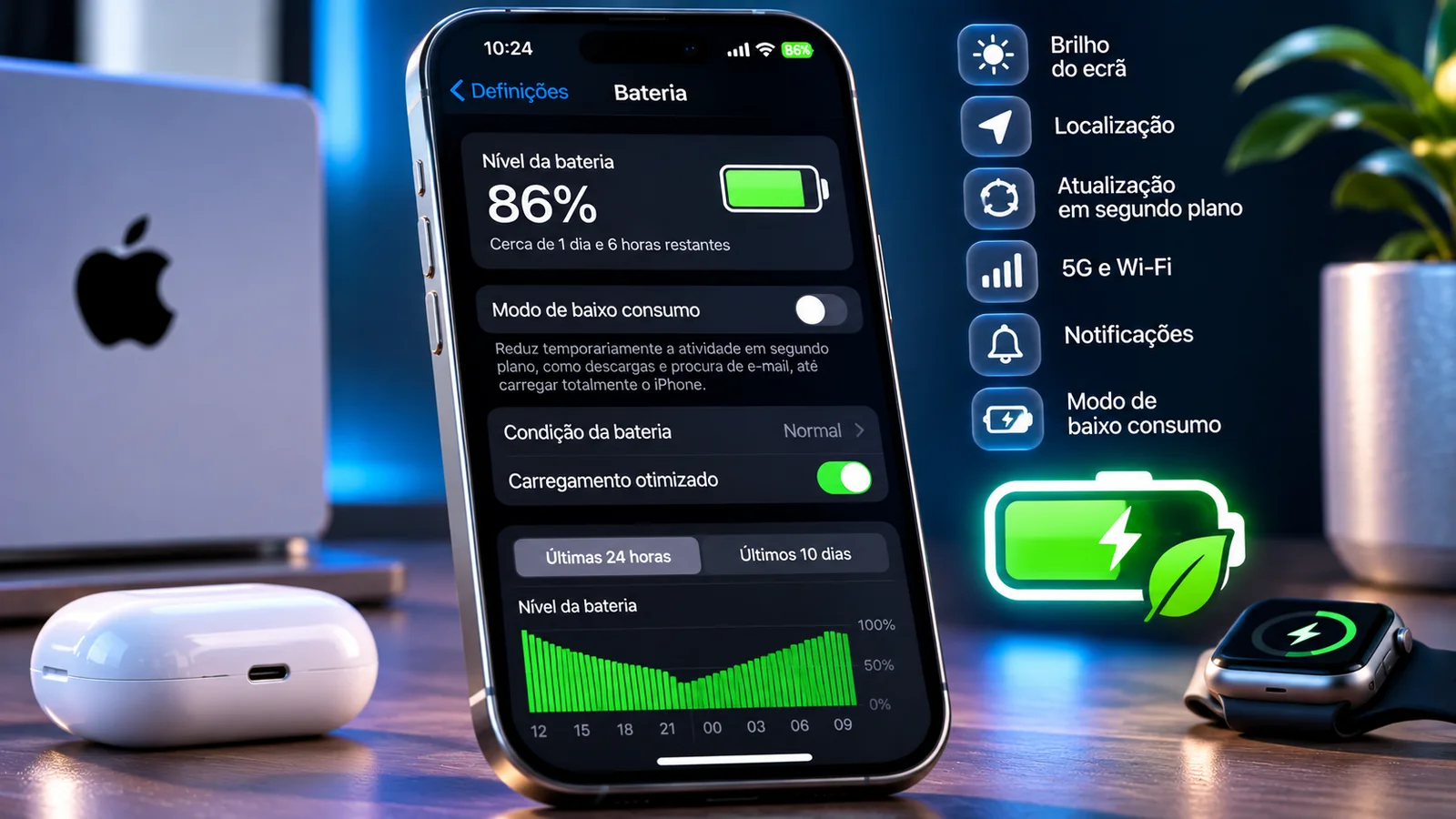
Battery graphs reveal which apps use energy on screen or in the background, alongside weak coverage and frequent notifications. iOS may make tailored suggestions. After a software update, temporary indexing and setup tasks can also explain a few days of heavier drain.
Battery life means hours between charges; battery health describes ageing and remaining capacity. Charge Limit and Optimized Battery Charging primarily protect longer-term battery health, rather than immediately extending runtime from a deliberately incomplete charge.
How to change this setting
- Open Settings → Battery → View All Battery Usage and compare several days.
- Under Battery → Battery Health, check battery condition and service notices.
- Under Battery → Charging, review Charge Limit and Optimized Battery Charging separately from daily battery-saving settings.
Practical example: High battery use during GPS navigation may be normal; unexplained background drain merits closer investigation.
What to know: Older iPhones use a different Battery Health menu. Software adjustments cannot reverse chemical battery ageing.
Frequently asked questions
Which setting makes the biggest difference?
It depends on usage. High brightness, long screen-on time, weak coverage or one busy app may all matter differently. Start with the Battery usage graphs.
Does Low Power Mode harm the battery?
No. It reduces selected activity to save energy. It is different from Charge Limit, which primarily supports long-term battery health.
Should I charge only to 80% to get longer battery life?
Not necessarily. Stopping at 80% means less available energy for that charge, though a lower limit can help long-term battery health. Choose based on your day.
Should I close every app to save battery?
No. Apple explains that routinely force-quitting apps is not a general performance improvement or battery-saving technique.
Settings checked on 12 November 2026; software updates may change menu labels.
- Apple — Adaptive Power and power modes
- Apple — Low Power Mode
- Apple — Display brightness
- Apple — Auto-Lock and Always-On Display
- Apple — Background App Refresh
- Apple — Location Services
- Apple — 5G and mobile data settings
- Apple — Notification settings
- Apple — Troubleshoot rapid battery drain
- Apple — Battery usage by app
- Apple — Battery Health
- Apple — Charge Limit and Optimized Battery Charging
Measure first, change what matters
Start with Battery usage and pick two or three changes that address your actual consumption. Compare comparable days and avoid disabling safety or accessibility tools. Better battery life is the result of sensible choices, not switching everything off.