When your iPhone says storage is almost full, the worst response is usually a rushed cleanup. The better path is to understand what is using space first and only then decide what to delete, offload or archive.
Editorial note. This guide combines practical advice, official documentation and everyday usage criteria. It does not replace official Apple support.
Start with the overall picture
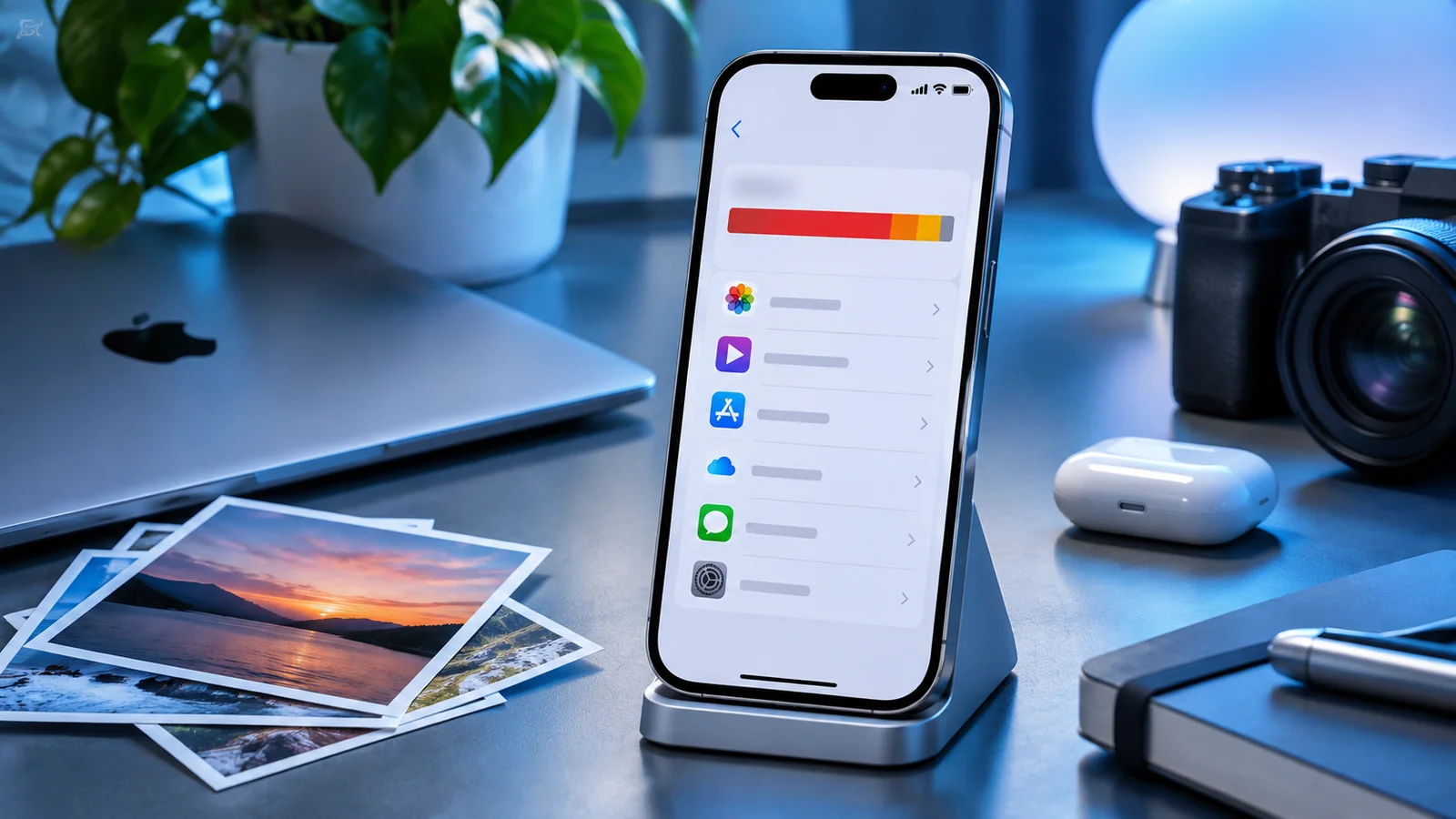
The first step is to open Settings > General > iPhone Storage. That view shows the heaviest categories and gives you a clear sense of where the problem comes from: photos, apps, messages, downloaded media or the system itself.
Without this first overview, it is easy to delete things that make very little difference and still end up with almost no free space.
Photos and videos: the usual suspect
On many iPhones, photos and videos take up the largest share of storage. Before deleting important memories, check for duplicates, old screenshots, large videos, and content you no longer need to keep locally.
If you use iCloud Photos, also check whether storage optimisation is enabled. That can reduce the amount of local space used while keeping originals in the cloud.
Important: if you use iCloud Photos, deleting a synced photo also removes it from other devices signed in to the same account. Make sure you have an independent backup before deleting important content.
Apps and downloaded content
Games, streaming platforms, offline maps, podcasts and rarely used apps can take up far more space than expected. Look at the weight of each app and ask whether it still deserves to stay installed.
Instead of deleting everything, consider offloading apps you do not use often. That way you free storage while keeping associated documents and preferences.
Messages, attachments and forgotten files
Older conversations, videos received in messages, email attachments and files stored inside apps can add up to many gigabytes. This is a less obvious area, but often an important one.
It is worth reviewing larger message attachments and download folders. Small accumulations repeated over months eventually create a big problem.
What not to do in a hurry
Do not delete critical apps before understanding whether you still have active sessions, backups or synced data. And avoid assuming that “System Data” can be fixed with random tricks taken from the internet.
When storage is genuinely tight, the priority should be to free space safely, not to experiment with risky shortcuts.
A practical clean-up sequence
1) Check the storage breakdown. 2) Start with unnecessary photos and videos. 3) Review large or rarely used apps. 4) Clean attachments and downloads. 5) Enable optimisation features where appropriate.
Following that order makes the clean-up more rational. Instead of deleting things at random, you free space methodically and with less regret.
This reference documents procedures and settings related to the topic. Check for changes on your iPhone or in Apple documentation.
View the official sourceWhat matters most
Freeing space on an iPhone should not be a panic reaction. Once you understand where the real weight is, you can solve the problem more safely and with fewer losses.