eSIM can simplify a lot: it removes the physical card, makes some activations easier, and can offer more flexibility in managing mobile lines. Before you switch, however, it is wise to confirm compatibility, carrier support, and the transfer process.
Editorial note. This guide combines practical advice, official documentation and everyday usage. It does not replace official support.
Start with iPhone compatibility
Not every model sold in every market works in exactly the same way. The first step is to confirm that your iPhone supports eSIM and that the specific version of the device allows the configuration you want to use.
This matters even more if the phone was purchased abroad, if it is an imported model, or if you plan to use more than one line.
Check carrier support in Portugal
Having a compatible iPhone is not enough: your carrier also needs to support eSIM on your plan and line type. In Portugal, this may vary depending on the plan, the activation channel, and the support process.
Before you begin the move, confirm how your carrier handles eSIM issuance, line transfer and any associated costs. That simple step can save time and help avoid a temporary loss of service.
What to prepare before activation
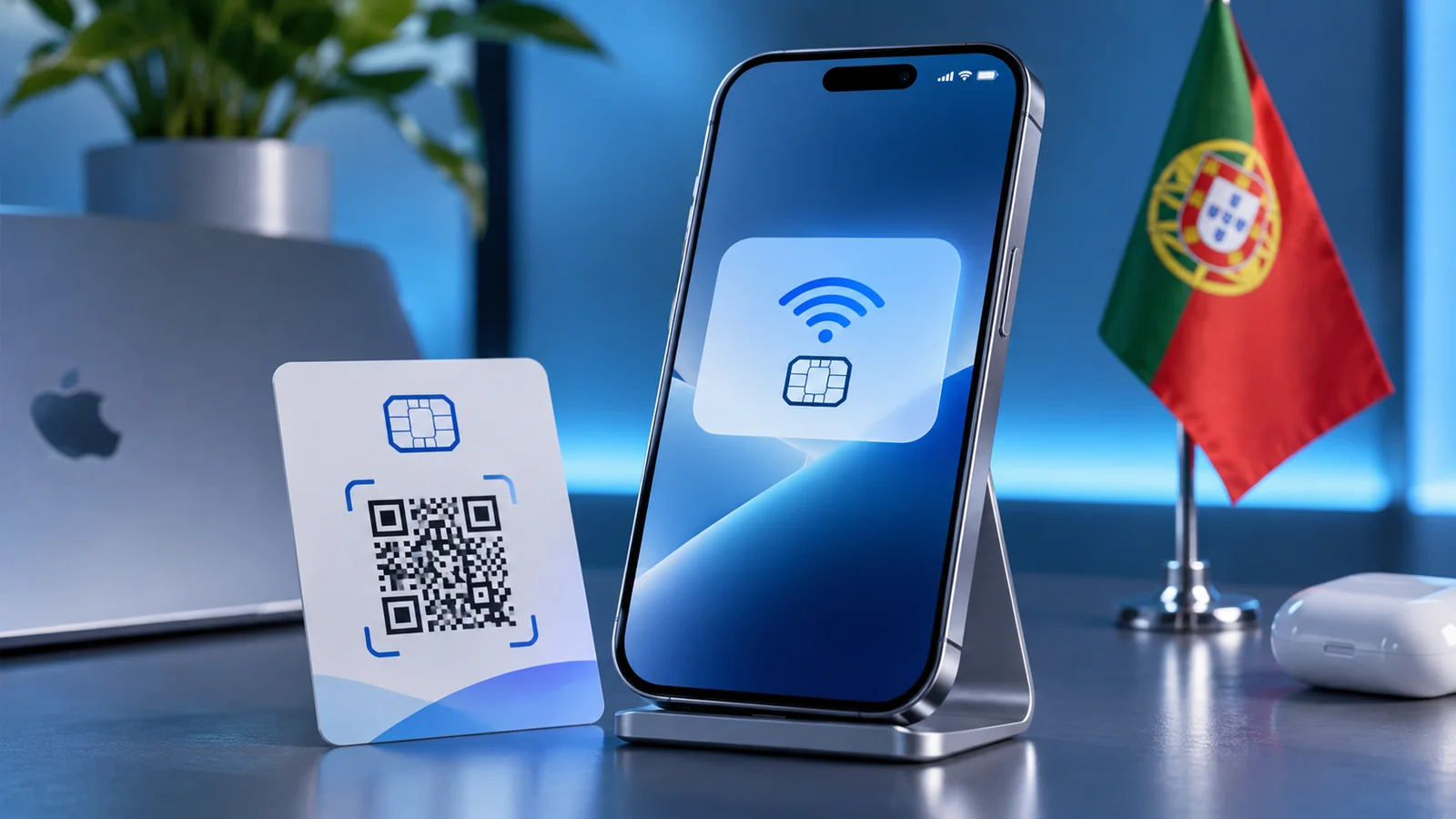
Ideally, you should have access to your carrier account, a stable Wi-Fi connection, an activation code or QR code where applicable, and enough time to complete the process without rushing. It is also useful to have another way to contact support if needed.
If you are moving a line from another iPhone, do not erase anything until you know whether the process is automatic or requires additional manual steps.
Transferring an existing line
Depending on the carrier, you may be able to use eSIM Quick Transfer between nearby iPhones, carrier activation, or a QR code. On the new iPhone, open Settings > Cellular (or Mobile Data) > Add eSIM and follow the steps. Method availability depends on the carrier and iOS version; confirm before disabling your previous line.
After the transfer, test calls, SMS and mobile data. An activation that appears complete may still need confirmation in real-world use.
The practical benefits of eSIM
eSIM can be useful for frequent travellers, dual-line users, people who want to avoid handling physical cards, or anyone needing an additional data plan. In theory, it simplifies logistics and removes a physical step.
In practice, the quality of the experience depends heavily on the carrier’s support and on how clearly the activation process is explained.
When to be more careful
If you rely heavily on your line for banking authentication, work or urgent contacts, avoid making the change at a critical moment. It is better to choose a time when you can test everything calmly.
It also makes sense to keep instructions, codes and support contacts available until you are certain the transition is stable.
This reference documents procedures and settings related to the topic. Check for updates before proceeding.
View the official sourceWhat matters most
eSIM can make the experience simpler, but it should not be treated as an instant switch that needs no preparation. If you confirm compatibility, carrier support and activation steps, the transition is much more likely to go smoothly.